Google offers this 2 step verification to all of it’s users – which helps any Google account holder to verify authentication in two steps to avoid any hacking or misusage of account.
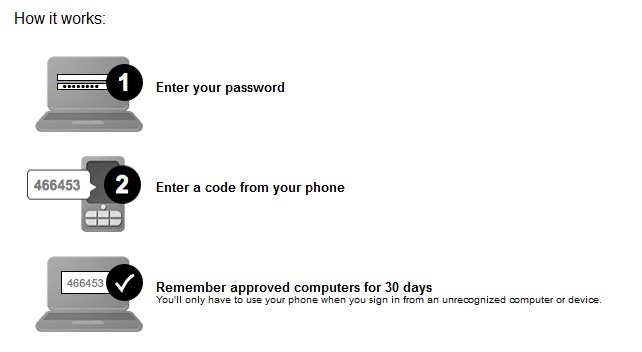
Here’s how it works:
If 2 step verification for Google is enabled then only password won’t be enough to get you logged in. Upon entering the password, Google will send you a code on your registered phone – only after entering that code into Google account will allow you to access your account.
In short, no potential hacker won’t be able to access your account – because he/she might have your password but he/she won’t have your phone.
You can ask Google to remember approved computers (such as your home PC or your laptop) for 30 days – to avoid entering pin every time you login.
How to Enable 2 Step Account Verification?
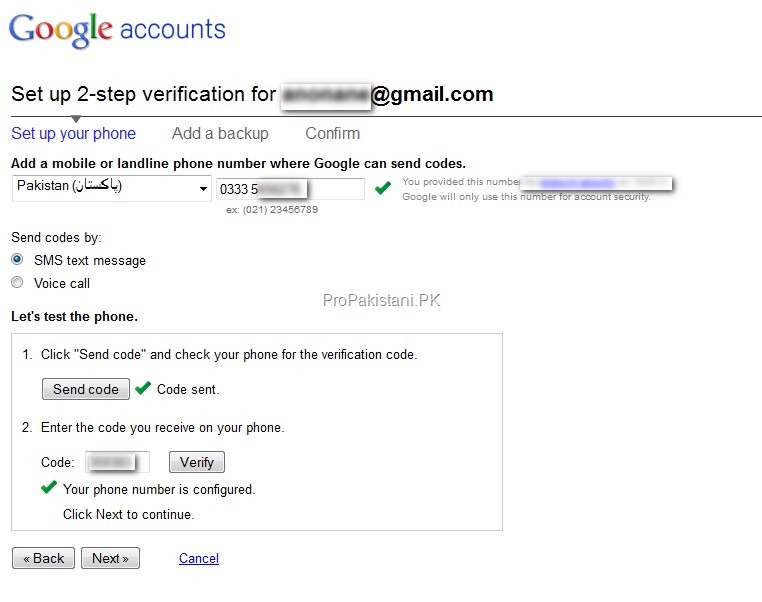
Step 1:
Step 2:
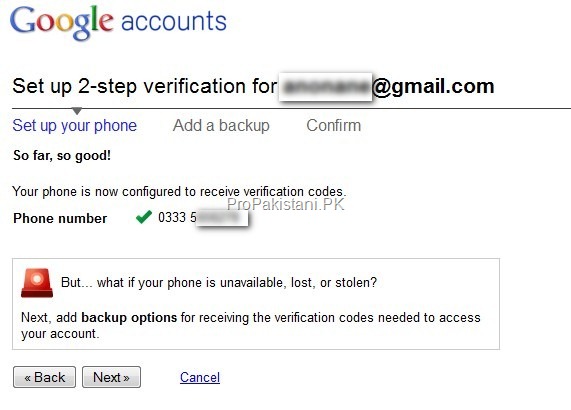
You’re Almost Done:
After clicking the verify button, system will take you to the confirmation page, detailing that 2 step verification has been configured for this account.
Click on Next to add backup options for receiving the verification codes needed to access your account.
This backup option is backup phone number that you may ask Google to send verification – in case your primary phone is lost or is not available. You can skip this step if you don’t want to setup backup verification phone numbers.
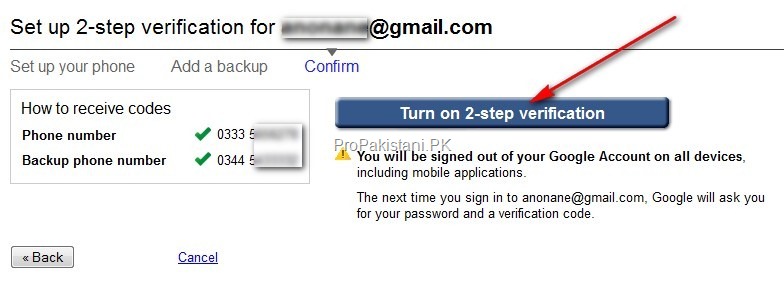
After adding the backup options, you will be forwarded to this page. Here you will be confirmed that 2 step verification is configured – you just need to enable 2 step verification now.
That’s it – you are done. Next time you whenever you will try to login – Google will ask for PIN, which is automatically sent to your phone via SMS.
Note:
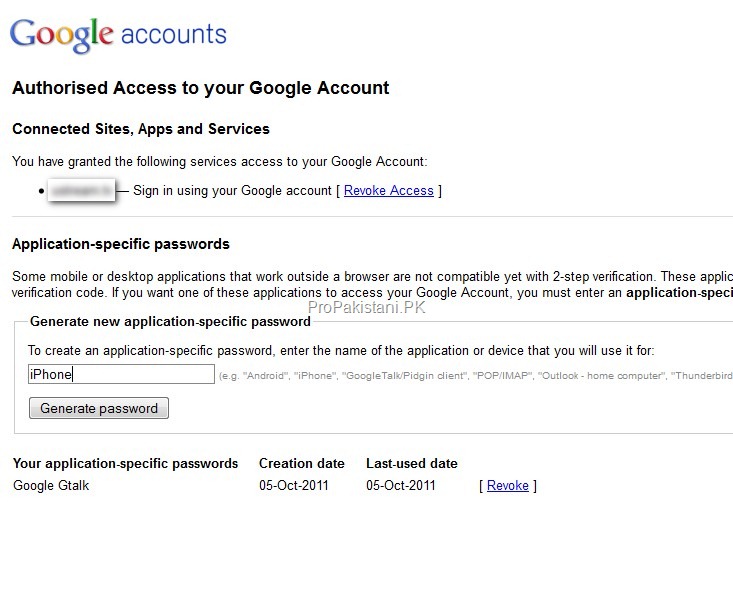
After 2 step verification, applications such as Gtalk may not accept your usual password. You need to create special password for application. Follow this few steps for generating special passwords for applications…
Get the latest news, tech updates, telecom insights, and business stories wherever you prefer.
Add ProPakistani to Preferred Sources and see more of our stories in Google Search and Top Stories.