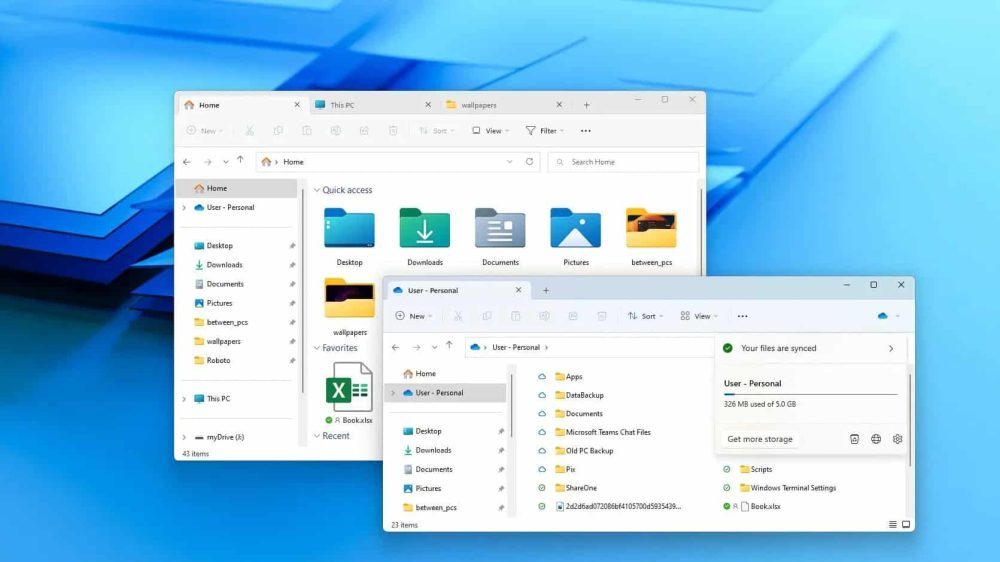
Microsoft recently ruined File Explorer on Windows 11 by introducing preloading. The feature, which was meant to speed up the File Explorer, ended up slowing it down with increased RAM usage, which became a bigger issue on older PCs.
Thankfully, you can now fix this issue with a simple tweak. Here is what you can do.
All you need to do is set the File Explorer to open to “This PC” instead of “Home.” The change can be made by opening File Explorer, selecting the ellipses menu, clicking Options, and updating the “Open File Explorer to” setting under the General tab.
Opening directly to “This PC” allows users to access local storage drives without triggering cloud queries or online content syncing.
Preloading still provides benefits when combined with the “This PC” setting. The feature allows File Explorer’s core components and interface framework to load into memory before the user opens the app, reducing initial startup delays.
Using both options together can deliver faster performance similar to what users experienced in Windows 10.
Despite the feature, many users still experience slow performance. Preloading slightly increases File Explorer’s memory usage and delivers only minor improvements in speed on most systems.
Microsoft rebuilt File Explorer using the modern WinUI framework while retaining its legacy Win32 core. As a result, the application must initialize modern interface elements, load shell extensions, sync cloud icons, and communicate with OneDrive and Microsoft 365 services each time it launches.
These background processes add noticeable delays, especially when File Explorer opens for the first time after a system restart.
Performance issues are most noticeable on the Home screen, which serves as File Explorer’s default landing page. The view displays recent files, favorites, and recommended content pulled from cloud services.
Each launch requires File Explorer to query OneDrive and Microsoft 365, sync online content, and populate these sections. This process often causes the loading message users see before any files or folders appear.
Folders synced with OneDrive or SharePoint may experience additional delays due to this cloud integration.
Microsoft has also introduced code optimizations in recent updates. These changes aim to improve Home tab loading times, increase archive extraction speeds, and reduce delays when opening folders that contain large media libraries.
Get the latest tech news, telecom insights, and product launches wherever you prefer.
Add ProPakistani to Preferred Sources and see more of our stories in Google Search and Top Stories.